How image resizing works
Resizing changes the pixel dimensions of an image. This tool draws your image to a browser canvas at the width and height you choose, then exports a fresh file you can save.
Private image resizing
Resize, convert, and optimize your images in seconds. No account required, and your files never leave your device.
Drop your images here
Select one or more JPG, PNG, WebP, AVIF, GIF, BMP, or ICO files. Everything stays in your browser.
Up to 25 MB and 16 megapixels per image. Up to 20 images and 40 megapixels per batch.
Your images stay on your device. Free to use. No account needed.
The image toolbox
Eight free tools, one private workflow. Images are edited on your device. Save a result and open it in another tool when you need a second step.
Set dimensions for one image or a mixed-shape batch.
Open resize →Trim distractions, reframe a shot, or create the exact aspect ratio you need. Your image is cropped locally in your browser and never uploaded.
Open crop →Convert between common image formats locally. JPG, PNG, WebP, GIF, BMP, and ICO output are supported; AVIF export depends on your browser.
Open convert →Reduce image file size with a live quality preview and clear savings estimate. Compression happens privately on your device.
Open compress →Add a soft haze or a strong privacy blur with a live preview. Your image stays on your device from start to finish.
Open blur →Rotate by 90°, 180°, or 270°, or flip an image horizontally or vertically. The canvas follows the new orientation, and processing stays on your device.
Open rotate →Add a single text watermark with adjustable size, opacity, color, and position. Preview it locally, then download a new copy without uploading the original.
Open watermark →Turn your own photo or image into a meme with bold, readable captions and a live preview. This free meme generator works locally in your browser—no upload, account, or watermark.
Open meme →Learn
Resizing changes the pixel dimensions of an image. This tool draws your image to a browser canvas at the width and height you choose, then exports a fresh file you can save.
Resizing changes width and height. Compressing reduces file weight by changing encoding quality. For JPG, WebP, and AVIF exports, the quality slider gives you light compression control too.
You can upload common browser-readable formats including JPG, PNG, WebP, AVIF, GIF, BMP, and ICO. Exports are available in those formats depending on browser support.
Resize images before publishing online, attaching to emails, creating thumbnails, submitting forms, or fitting exact social media dimensions without opening a heavy design app.
Common targets include 1080 x 1080 for square posts, 1080 x 1920 for stories, 1280 x 720 for video thumbnails, and 1584 x 396 for LinkedIn banners.
Your original file stays on your device. The resize operation happens locally in your browser, which keeps private screenshots, documents, and personal photos out of upload queues.
Practical guide
A smaller image is not automatically a better image. The useful result is the smallest file that still has the right pixel dimensions, format, transparency, and visual quality for its destination.
The guidance below reflects how this tool actually processes files in your browser. It is meant to help you choose settings deliberately instead of relying on a one-size-fits-all preset.
Start with the destination for the image, then work backward to the settings.
A 4,000-pixel photo is unnecessary in a 900-pixel article column. Export close to the largest size at which the image will actually appear, allowing extra resolution only when a high-density display or later crop requires it.
Keep the aspect-ratio control enabled for ordinary photos, screenshots, and illustrations. Enter one target dimension and let the other follow. Use exact width and height only when the destination requires a fixed canvas and stretching is acceptable.
Photos usually suit JPG, WebP, or AVIF. Graphics that need transparent backgrounds often suit PNG or WebP. Choosing a format for its job generally saves more space than forcing every image through the same quality setting.
The browser creates a newly encoded download. Embedded camera metadata, color-profile details, and animation may not survive that process, so treat the resized file as a derivative and keep the untouched original when those details matter.
Browser support and the contents of the image both affect the best choice. “Original” keeps the source format, while a named output format converts the new file.
| Format | Usually best for | What to watch for |
|---|---|---|
| JPG | Photographs, email attachments, and broadly compatible web images. | No transparency. Repeated exports can add visible compression artifacts. |
| PNG | Logos, interface captures, diagrams, and images that need full transparency. | Photographs can remain much larger than equivalent WebP, AVIF, or JPG files. |
| WebP | Modern web delivery when you want strong compression and optional transparency. | Check the requirements of older software or upload portals before converting. |
| AVIF | Aggressive photo compression where current browser and application support is known. | Encoding can take longer, and support depends on the browser doing the export. |
| GIF, BMP, and ICO | Legacy or specialized workflows that specifically request one of these formats. | Canvas export captures a still GIF frame; these formats are rarely the smallest general web choice. |
These checks take less time than fixing a blurry, stretched, or unexpectedly large export later.
Note its pixel dimensions, file size, orientation, transparency, and whether it is animated. Those facts determine which settings are safe to change.
Use a preset only when it matches the publishing surface. Otherwise enter the needed width or height with aspect ratio preserved and review the calculated output dimensions on each batch card.
Use the quality control for JPG, WebP, and AVIF. Start high, then lower it only until the estimated size improves without introducing visible halos, blockiness, or lost texture.
Open the result outside this page and confirm its dimensions, transparency, text sharpness, and file size before deleting or archiving the original.
Try it yourself
These original sample graphics were generated for this site and processed through the same image functions as the tools. Your image and browser will produce different byte sizes.
This graphic has a transparent background. Resize from 640 × 360 to 320 × 180, keep PNG selected, then check the transparent corners in your image viewer.
Measured 2026-10-21 in Chromium 153.0.8010.12. Canvas re-encodes the output.
Download sample · Download result · Try this tool
Set width to 150 with aspect lock on. The landscape becomes 150 × 75; the portrait becomes 150 × 300. Sizes below total the two files. The images keep their proportions.
Measured 2026-10-21 in Chromium 153.0.8010.12. Canvas re-encodes the output.
Download sample · Portrait sample · Download result · Portrait result · Try this tool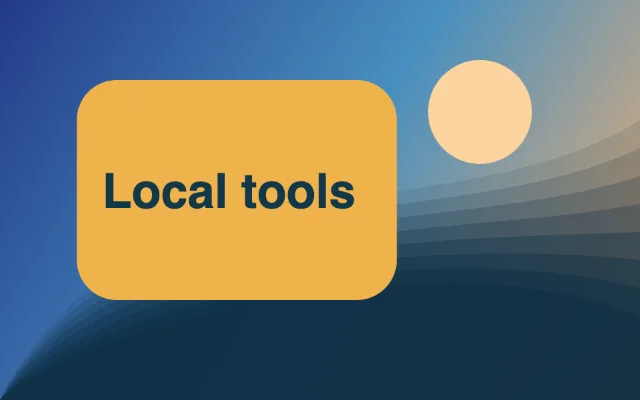
This colorful illustration is original generated artwork, not a photograph. Export at 640 × 400 as WebP, quality 82%. Compare edges and lettering before choosing it for your own site.
Measured 2026-10-21 in Chromium 153.0.8010.12. Canvas re-encodes the output.
Download sample · Download result · Try this toolAnswers
No. Images are opened, resized, previewed, and exported in your browser. The tool does not upload your files to a server.
You can upload and save JPG, PNG, WebP, AVIF, GIF, BMP, and ICO images. Some browser-native formats may save as a still image rather than preserving animation.
Resizing changes image pixels, so very large size changes can affect sharpness. JPG, WebP, and AVIF exports also use the quality setting you choose.
Yes. The layout works on phones and tablets, including mobile file pickers and touch screens.
Width is the horizontal pixel count and height is the vertical pixel count. Together they determine the image dimensions.
Usually, yes. Locking aspect ratio prevents stretching. Turn it off when you need an exact size for a platform or template.
Yes. Use presets for common targets like Instagram posts, Instagram stories, YouTube thumbnails, LinkedIn banners, and more.
Browsers encode images slightly differently by format and quality. The estimate uses the same local export path, but final size can vary by browser.
For JPG, WebP, and AVIF, lowering the quality slider can reduce file size while keeping the selected dimensions.
PNG and WebP can preserve transparency. JPG does not support transparency, so transparent areas may be flattened by the browser export.
Browsers can preview GIFs, but Canvas export captures a still frame. Full animated GIF resizing is planned as a separate future tool.
This release accepts up to 20 files per batch, 25 MB and 16 megapixels per image, and 40 megapixels in total. Maximum output is 8,192 pixels per side and 16 megapixels. Your device may need smaller files.